If you have the Microsoft Teams app installed on your computer or phone, the browser will prompt you to open the app. Click "Open Microsoft Teams" to join the meeting through the app. It may also prompt you to download the app to make it easier to join.
If you do not have the app installed and do not wish to download, you can choose to join the meeting on the web by clicking "Continue on this browser".
If you have a Microsoft account, you can sign in to join the meeting.
If you don't have an account or prefer not to sign in, you can join the meeting as a guest by entering your name and email when prompted.
Step 4: Configure Audio and Video Settings
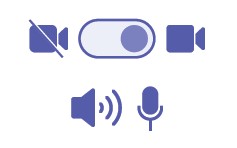
Make sure your microphone and camera are working correctly. If joining from a browser you may have to grant access to your camera and microphone. You can also choose to join with your camera and microphone turned off if you prefer. *Some meetings may be set where cameras or microphones are turned off automatically. If microphones are muted for the meeting, you can instead use the Q&A or chat options available during the meeting.
Once you have configured your audio and video settings, click "Join now" to enter the meeting.
Someone in the meeting should let you in soon!
Step 6: Wait for Admission
If the meeting organizer has set up a lobby, you may need to wait for them to admit you into the meeting. If no lobby was created, you will be admitted directly into the meeting.